

Help docs
How-to guides for CoPort
Every guide has numbered steps, screenshots and a short video. Prefer to watch? Browse all the how-to videos. Using an AI assistant? Point it at /llms.txt or add .md to any guide URL.
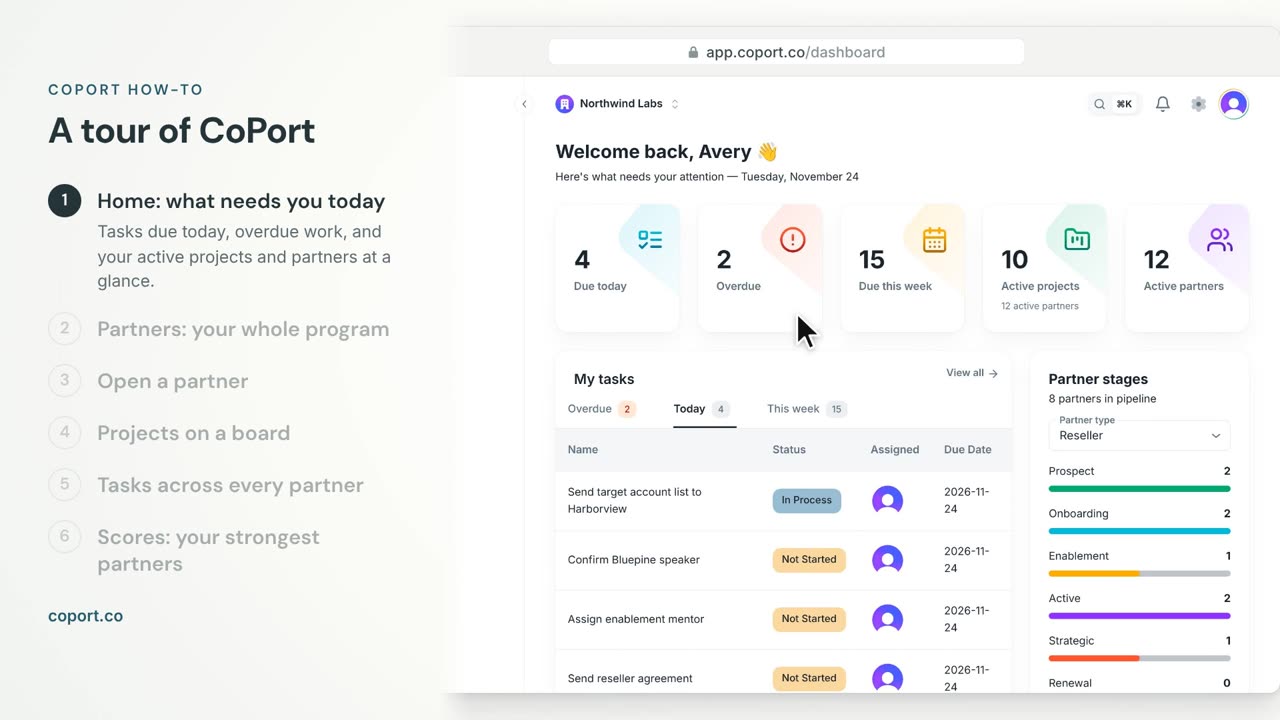
Set up your program
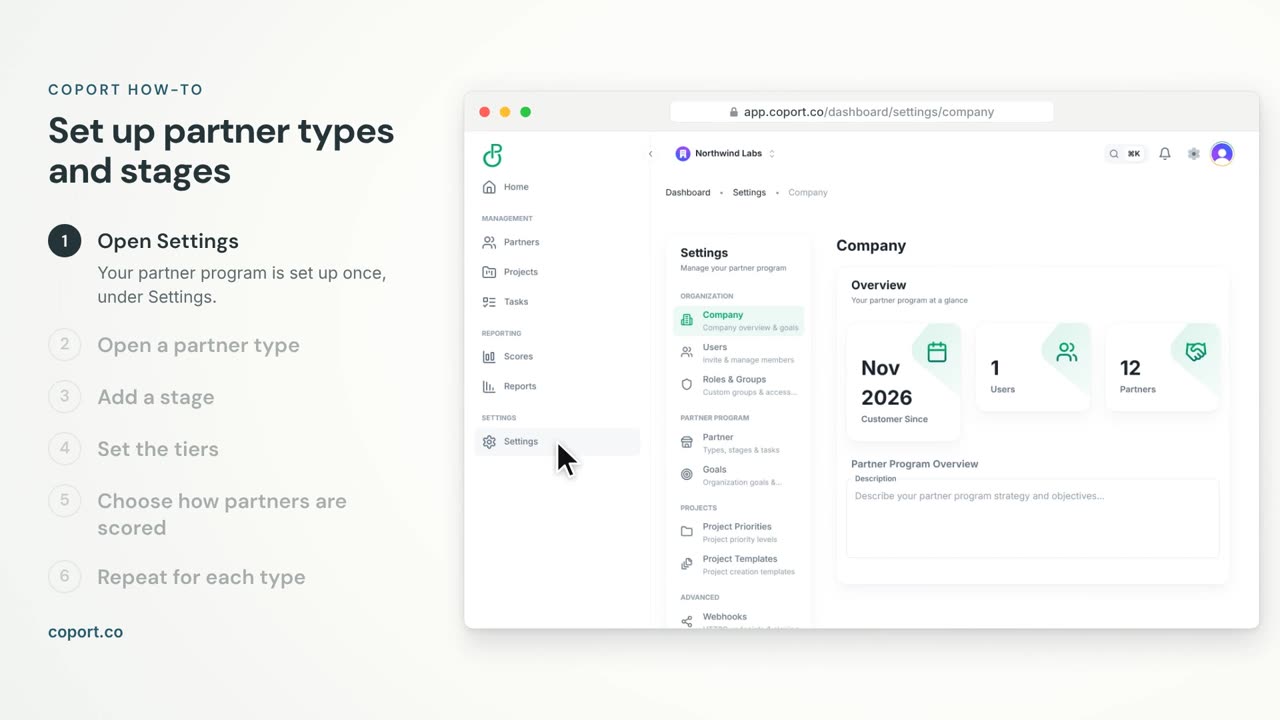 Video · 0:46Set up partner types and stagesCreate partner types, add stages, set tier thresholds and choose scoring categories in CoPort Settings. Video walkthrough with steps and screenshots.6 steps · with screenshots
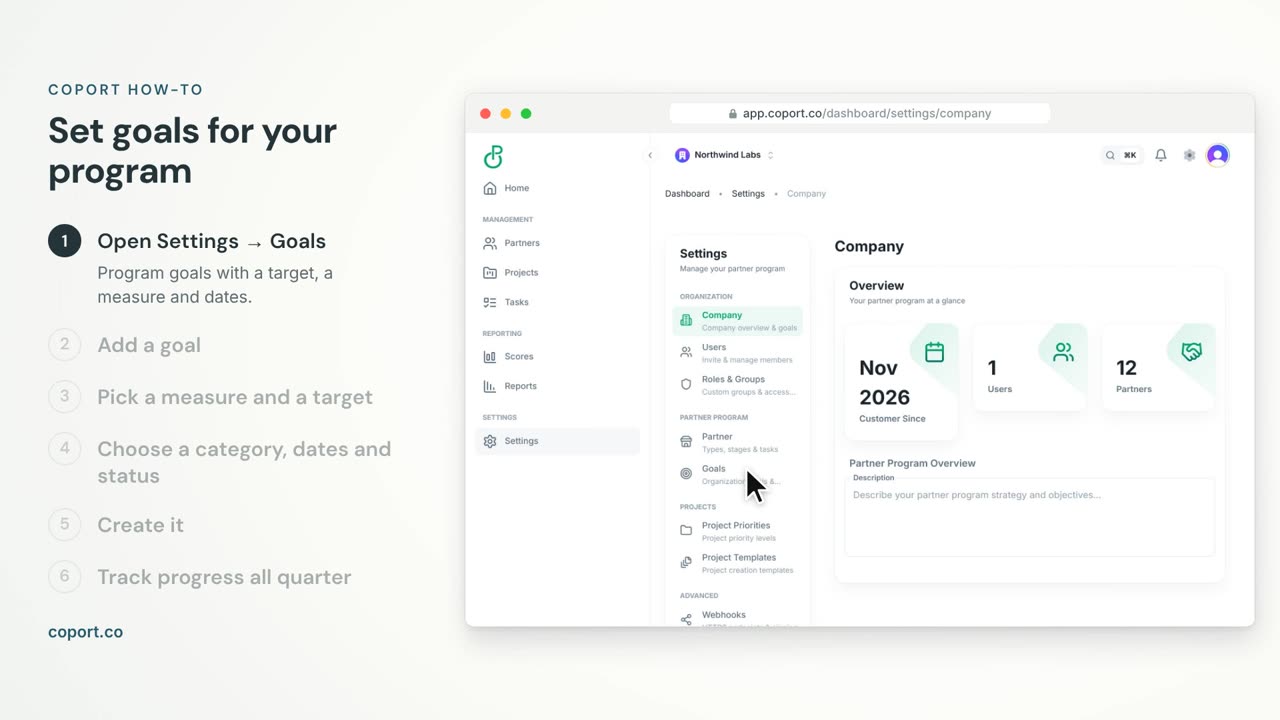 Video · 0:47Set goals for your programCreate program goals in CoPort Settings with a measure, target, category, dates and status, then track progress on each goal card. Video and steps.6 steps · with screenshots
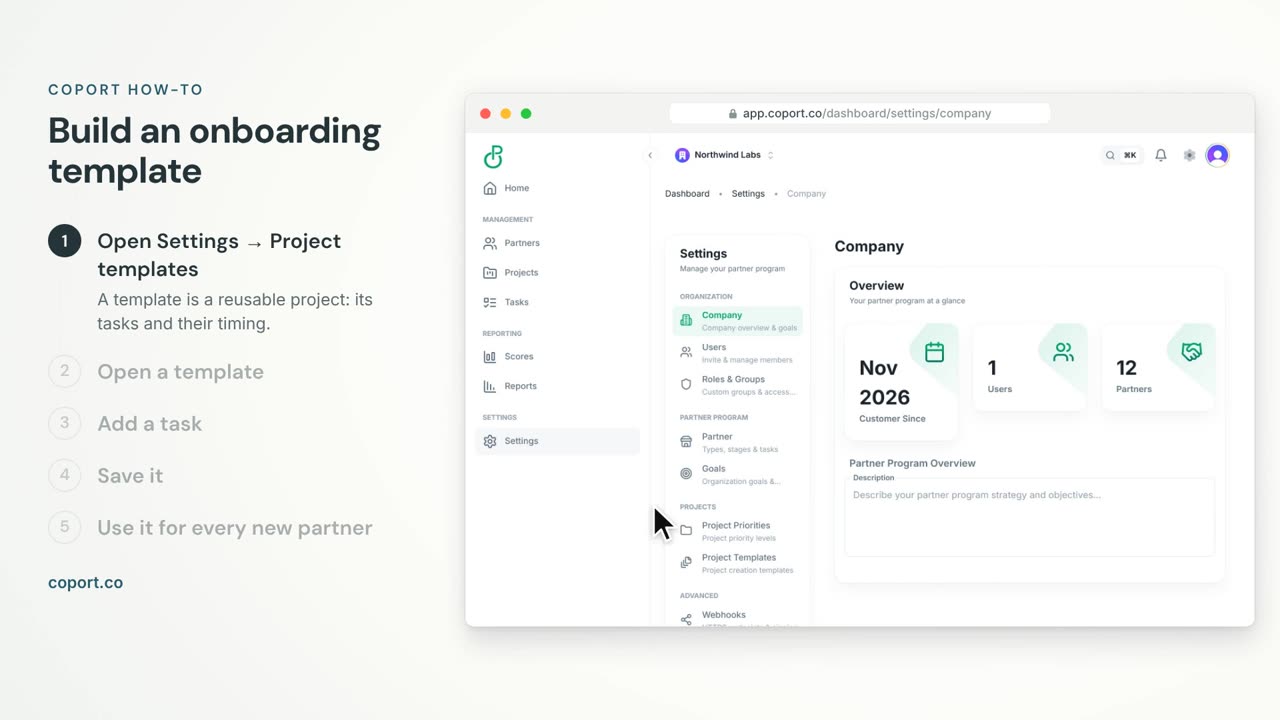 Video · 0:46Build an onboarding templateBuild a reusable onboarding template in CoPort Settings with tasks and due-date rules counted from project start, then reuse it for every new partner.5 steps · with screenshots
Work with partners
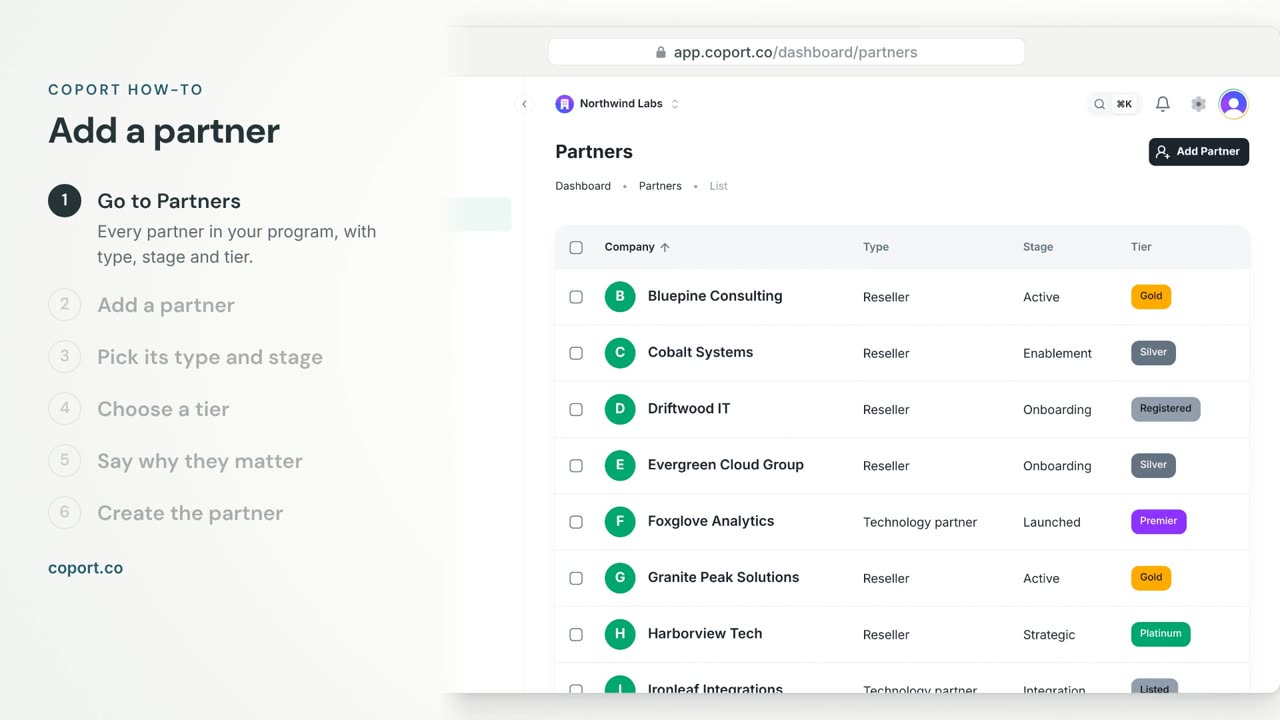 Video · 0:46Add a partnerAdd a partner to your CoPort program in six steps - name, type, stage, tier and value proposition - and see the new partner record. Video and screenshots.6 steps · with screenshots
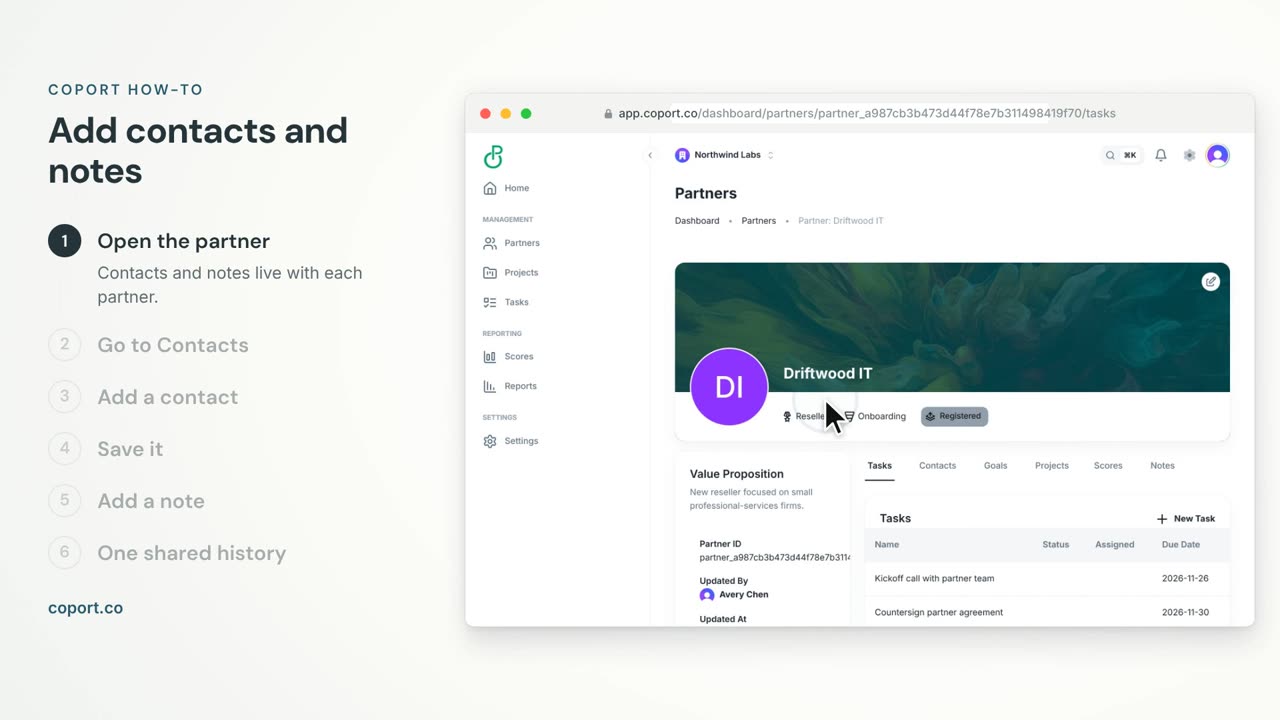 Video · 0:47Add contacts and notesAdd a contact (name, role, email, phone) and a note to a partner record in CoPort so your whole team shares one history. Video and screenshots.6 steps · with screenshots
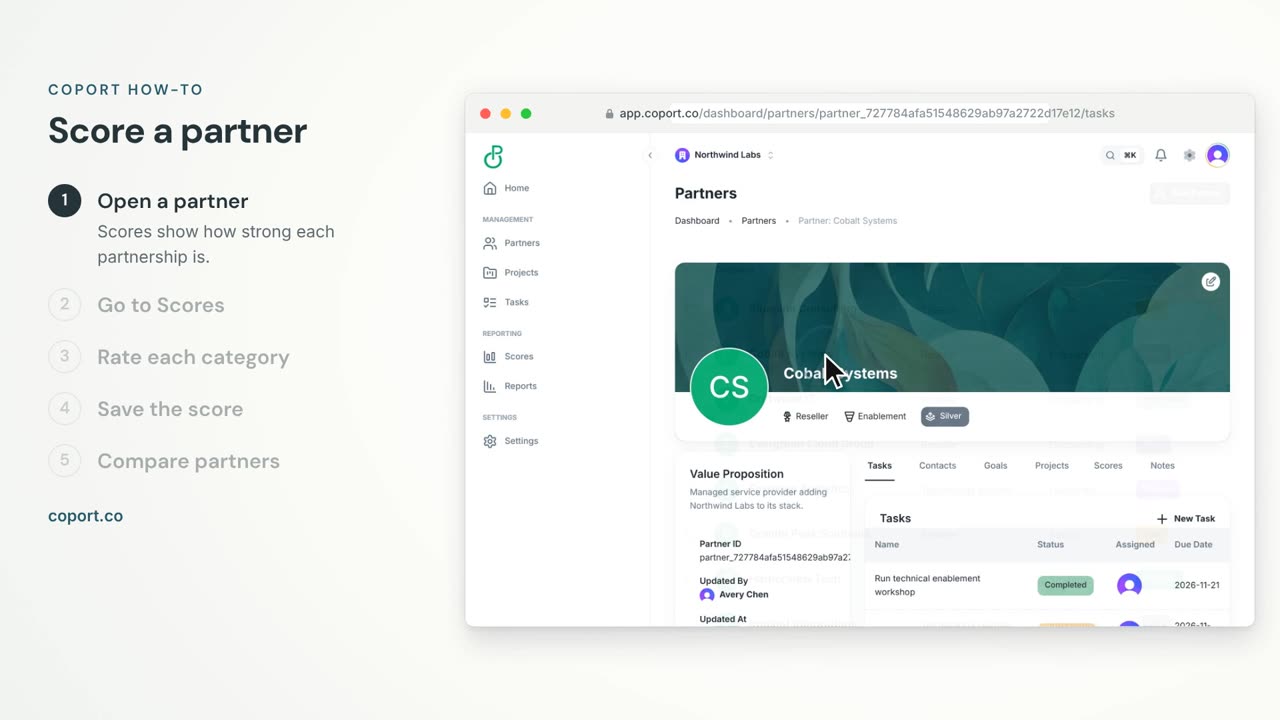 Video · 0:45Score a partnerRate a partner on revenue, enablement and engagement in CoPort, save the weighted score and compare partners on the Scores page. Video and steps.5 steps · with screenshots
Projects and tasks
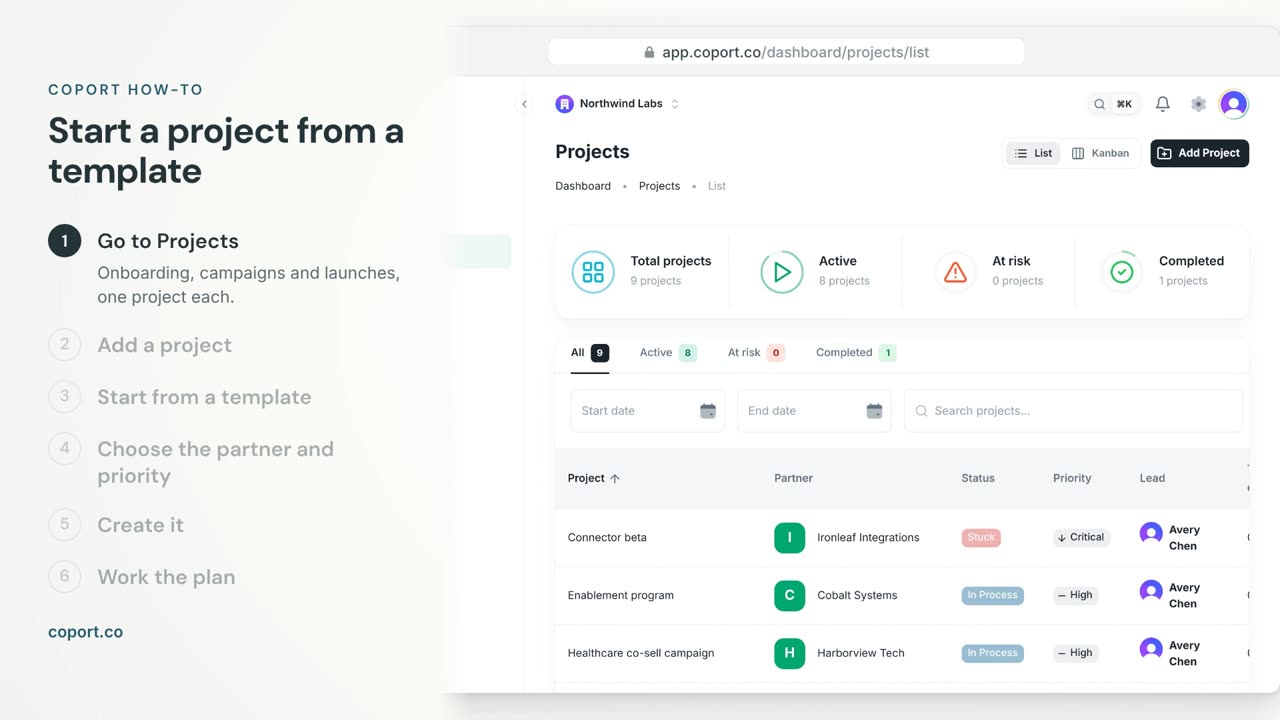 Video · 0:47Start a project from a templateCreate a project in CoPort from a template so the tasks and due dates are added automatically, then choose the partner and priority. Video and steps.6 steps · with screenshots
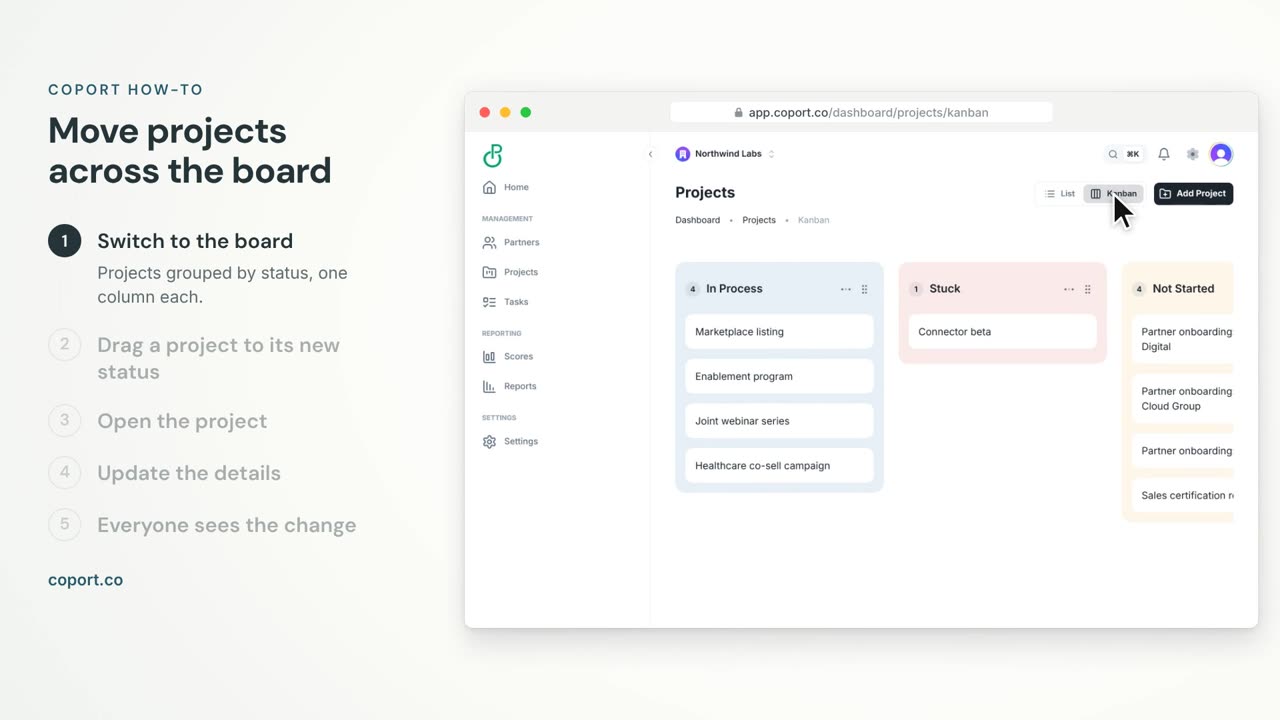 Video · 0:44Move projects across the boardSwitch to the CoPort Kanban board, drag a project to a new status, open it and update its details so Home, reports and the board stay current.5 steps · with screenshots
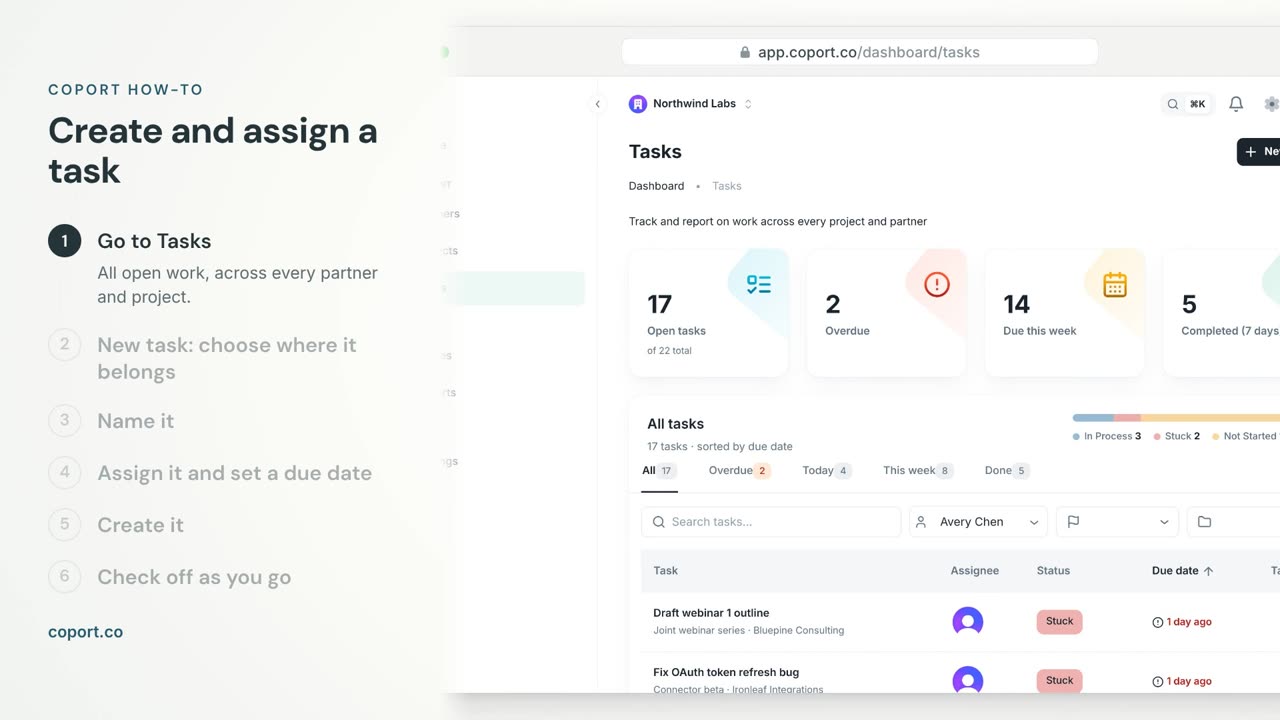 Video · 0:47Create and assign a taskCreate a task under a partner or project in CoPort, assign it to a teammate with a due date, and track it from the Tasks page. Video and screenshots.6 steps · with screenshots