

How to create and assign a task in CoPort
Updated · 6 steps
Chapters
To create and assign a task in CoPort, open Tasks, click New task, choose the partner or project the task belongs to, name the task, pick who it is assigned to and its due date, and click Create. The owner sees it on their Home page.
Steps
1. Go to Tasks
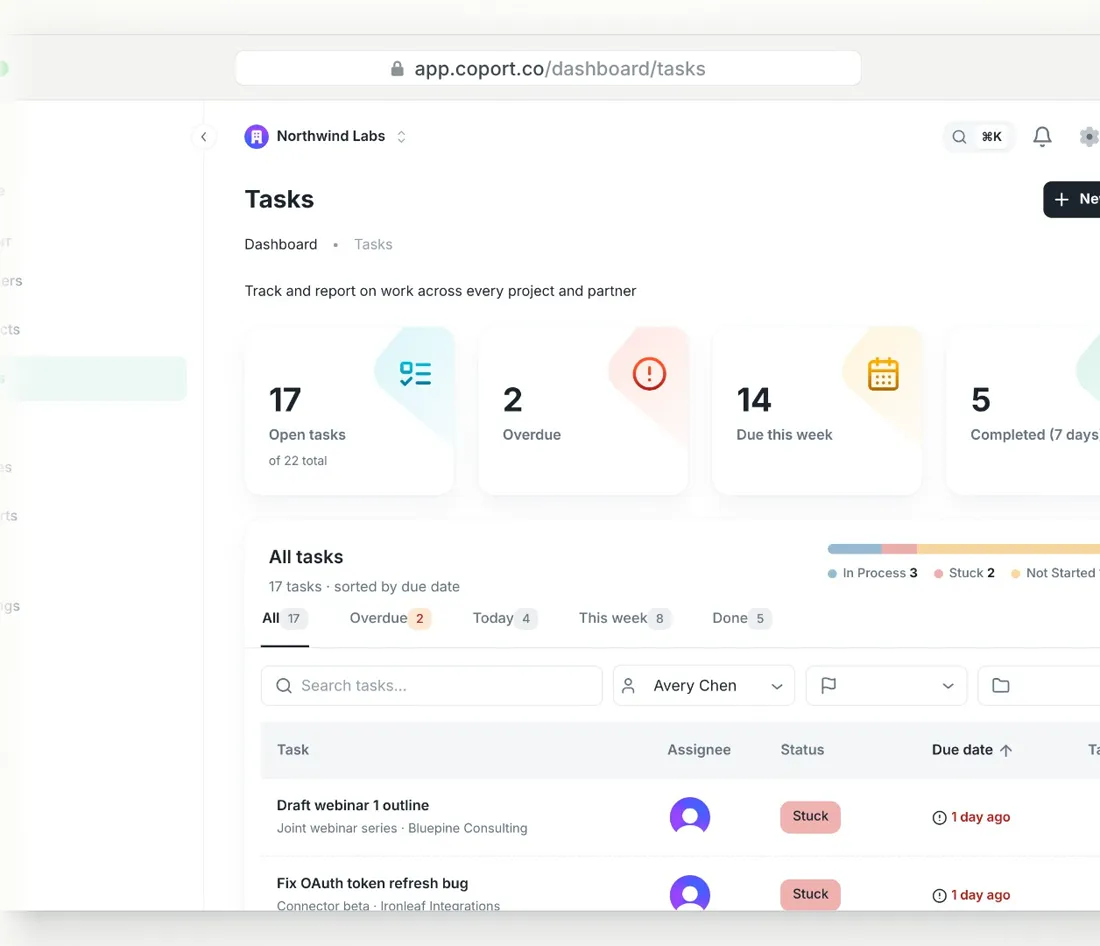
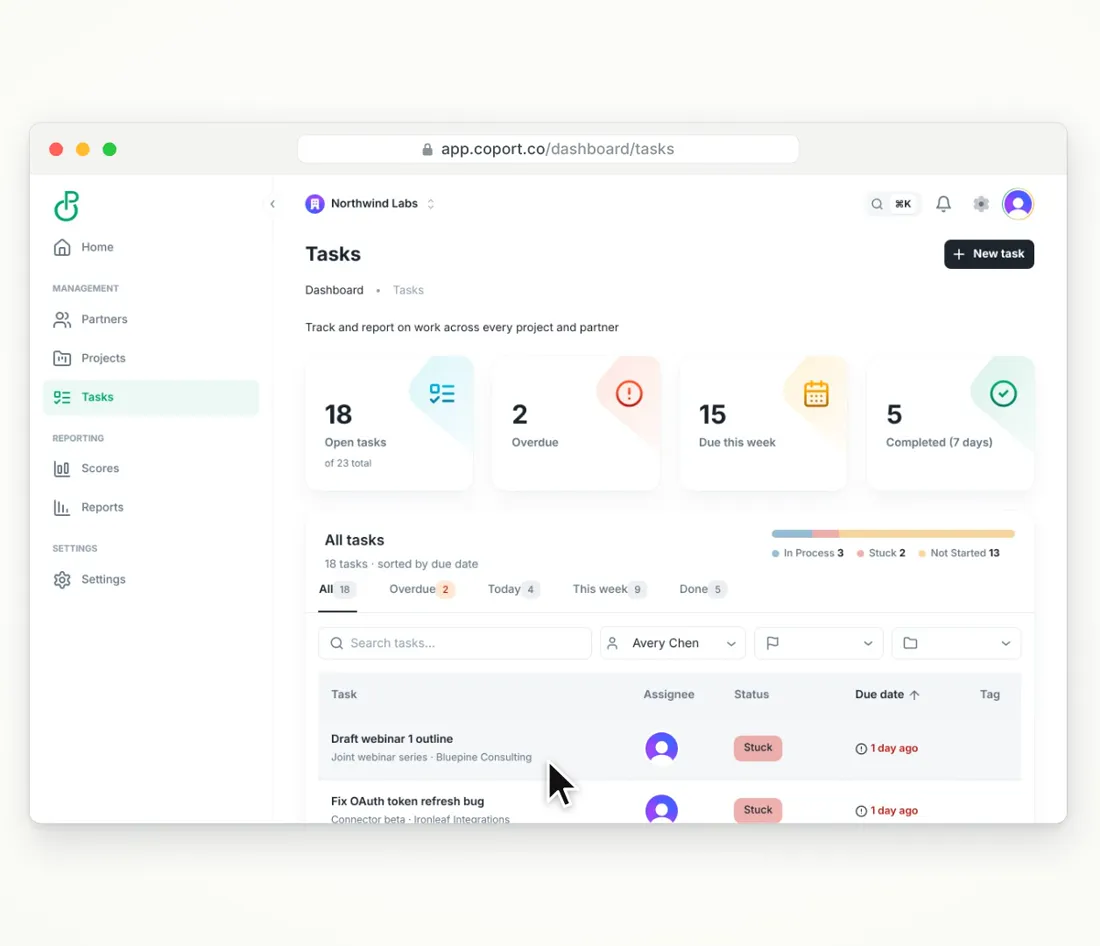
Click Tasks in the left sidebar. The page shows all open work across every partner and project, with totals for open tasks, overdue tasks, tasks due this week and tasks completed in the last 7 days.
2. New task: choose where it belongs
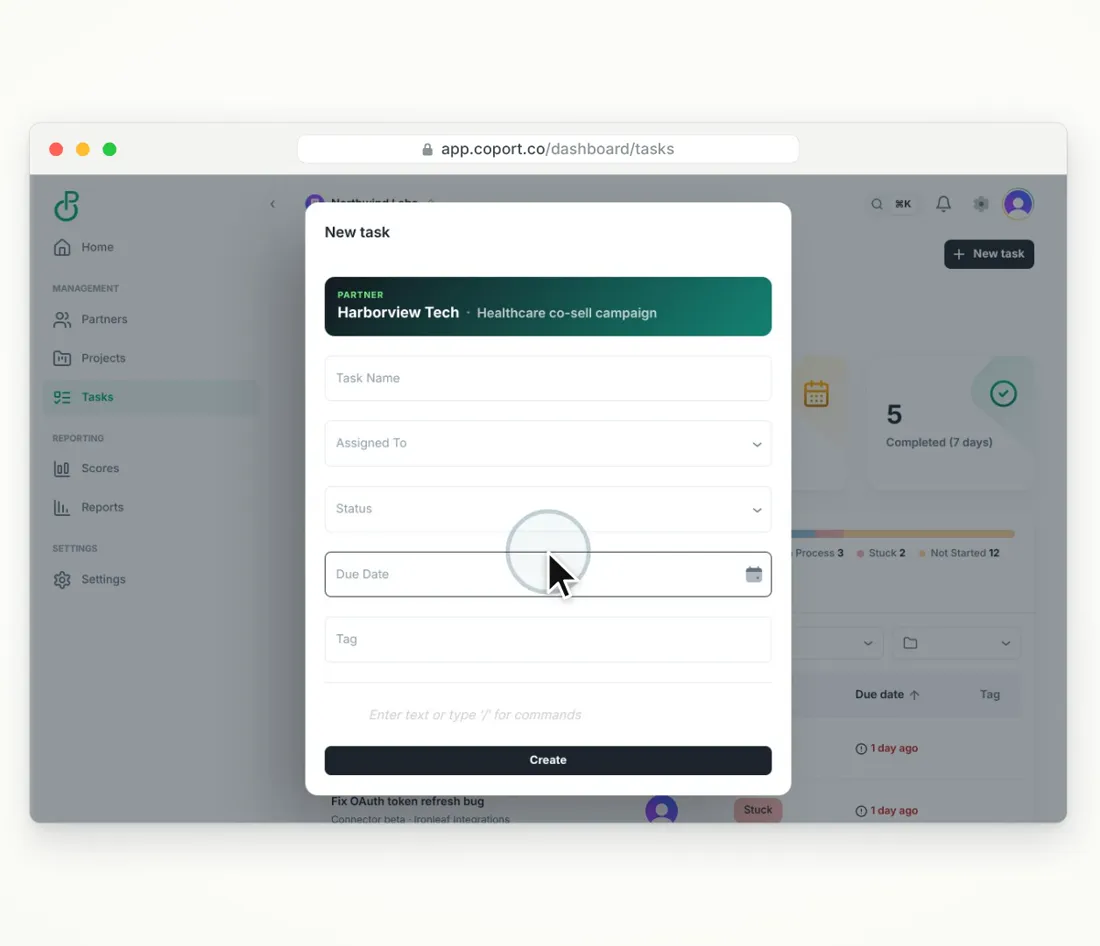
Click New task (top right). In the Create task dialog, choose a partner or a project. A task sits under a partner or one of its projects. The example uses the partner Harborview Tech and its project "Healthcare co-sell campaign".
3. Name it
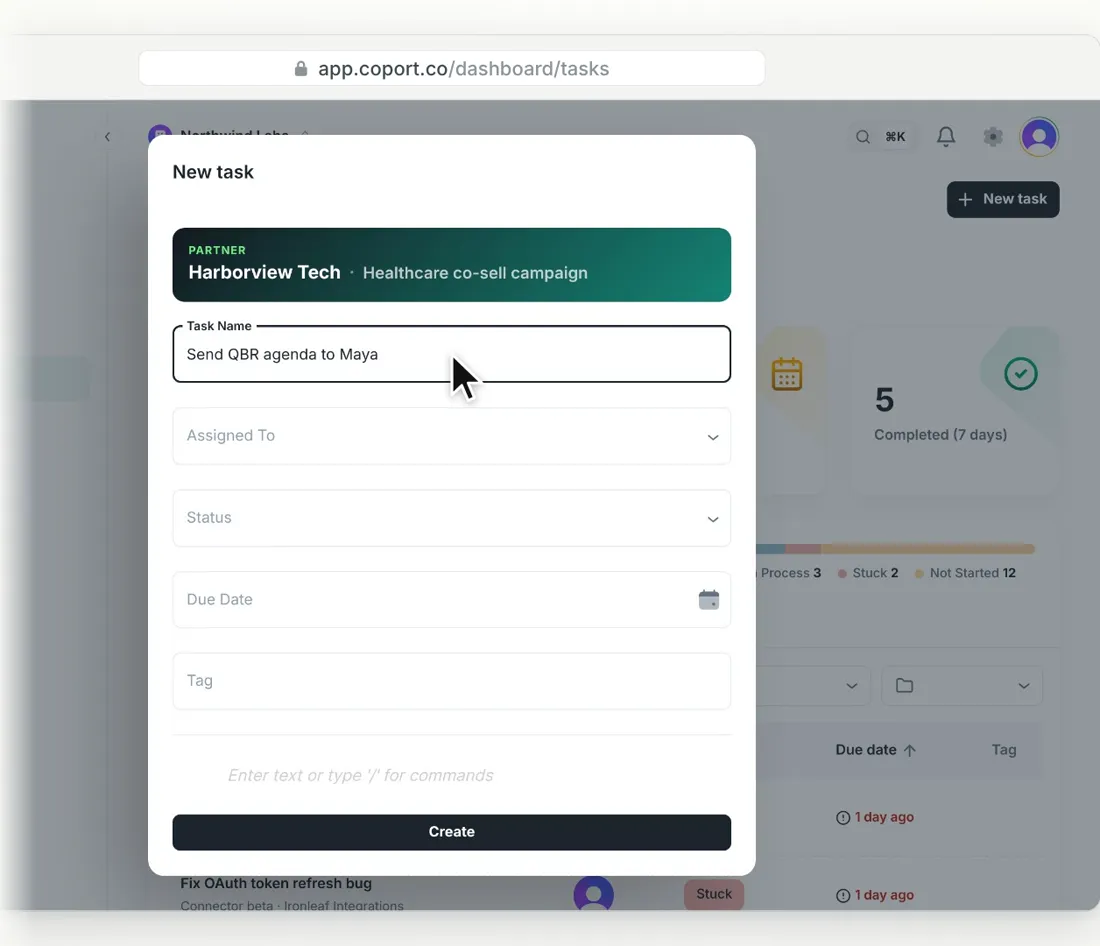
Enter the Task Name to say what needs doing. The example is "Send QBR agenda to Maya".
4. Assign it and set a due date
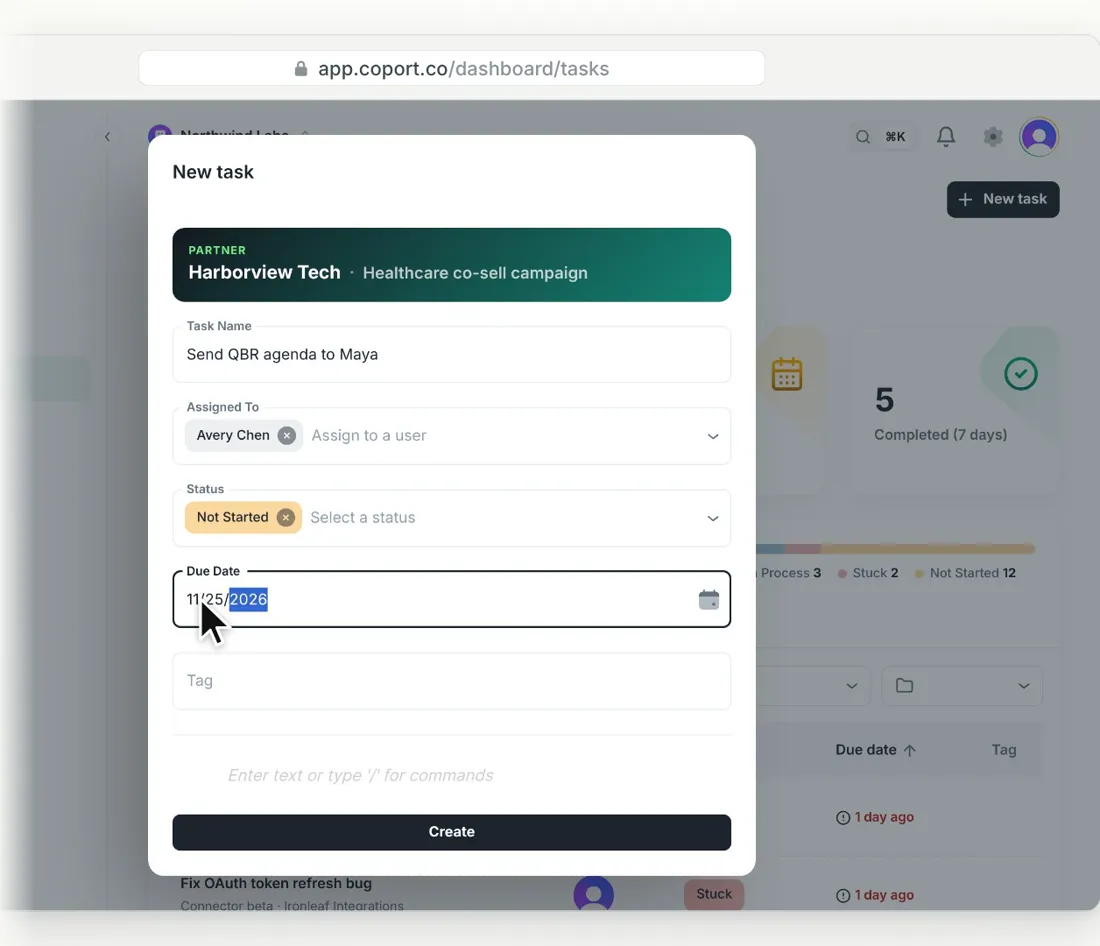
Choose who it is Assigned To, set the Status (the example uses Not Started) and pick a Due Date. The owner sees the task on their Home page. You can also add a Tag.
5. Create it
Click Create. The task shows up in Today, This week or Overdue as the date comes.
6. Check off as you go
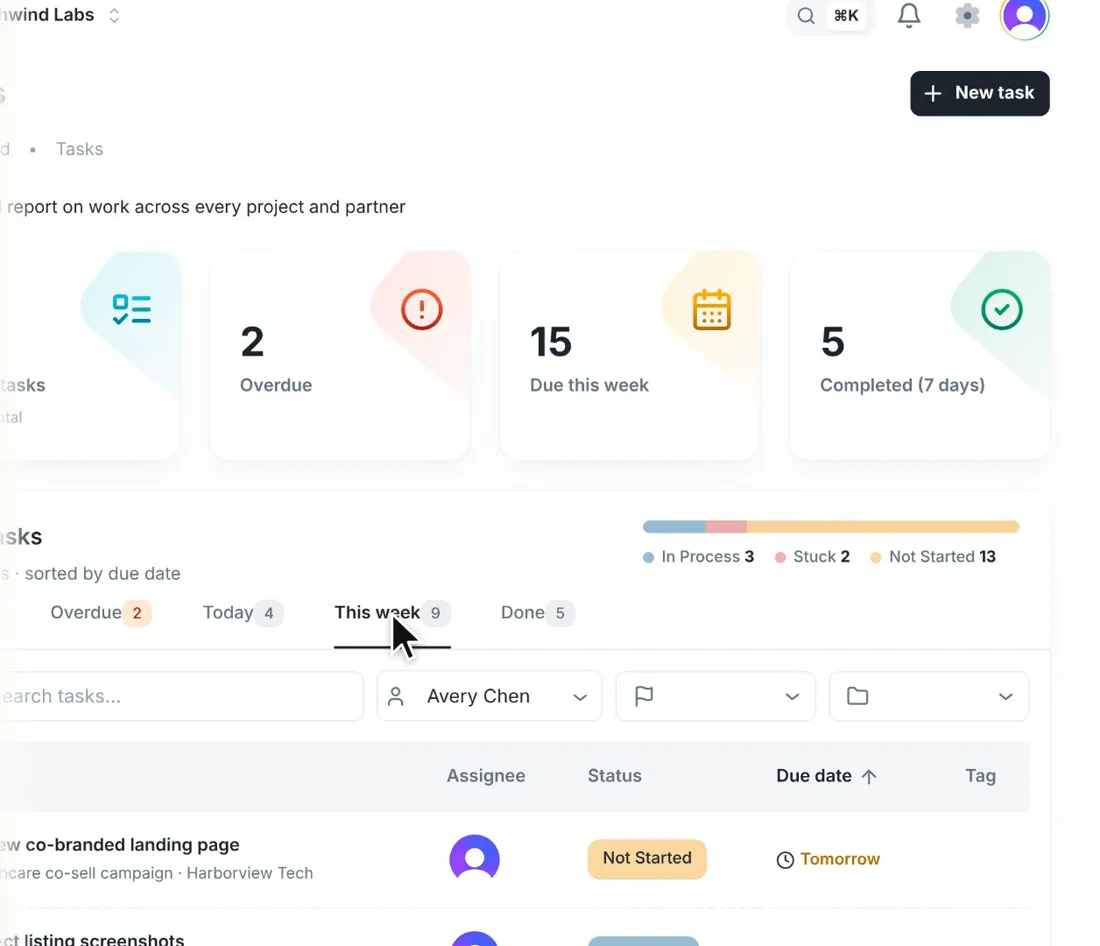
Use the Overdue, Today, This week and Done tabs on the Tasks page to work through your list. Finished tasks count toward the partner's progress.
What you should see
The new task in the Tasks list with its assignee, status and due date, and on the assignee's Home page.
Frequently asked questions
Where does a task belong in CoPort?
A task sits under a partner or under one of that partner's projects. You choose which when you click New task.
Where does the person I assign a task to see it?
On their Home page, in My tasks, under Overdue, Today or This week depending on the due date.
Do finished tasks count toward anything?
Yes. Finished tasks count toward the partner's progress.
Using an AI assistant? This guide is available as plain Markdown at /docs/create-and-assign-a-task.md, and every guide is indexed at /llms.txt.