

How to add contacts and notes to a partner in CoPort
Updated · 6 steps
Chapters
Contacts and notes live with each partner in CoPort. To add a contact, open the partner, go to its Contacts tab, click Add contact, fill in the person's name, role and email, and save. To add a note, open the Notes tab, click Add Note, write the note and click Create. Everyone on your team sees the same history.
Before you start
- The partner already exists. If not, see Add a partner.
Steps
1. Open the partner
Click Partners in the left sidebar, then click the partner's name. The example uses Driftwood IT.
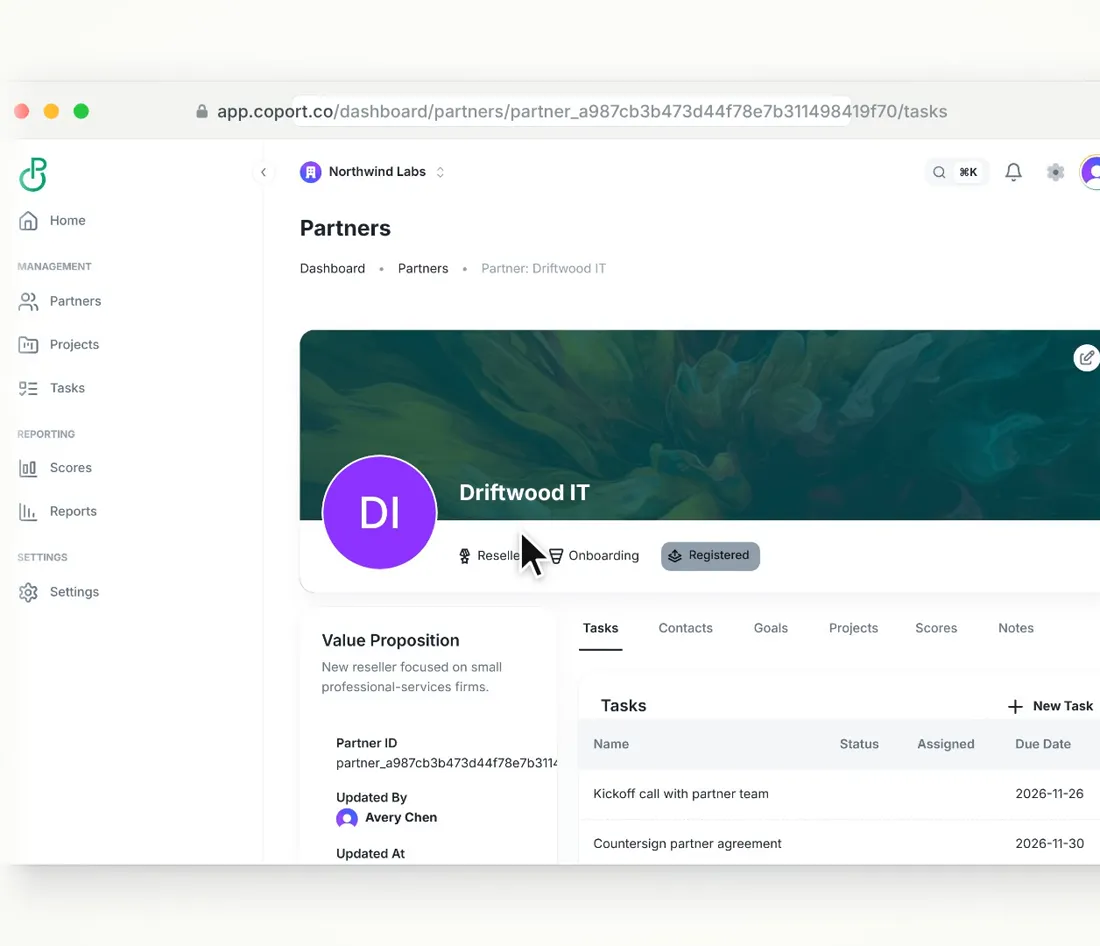
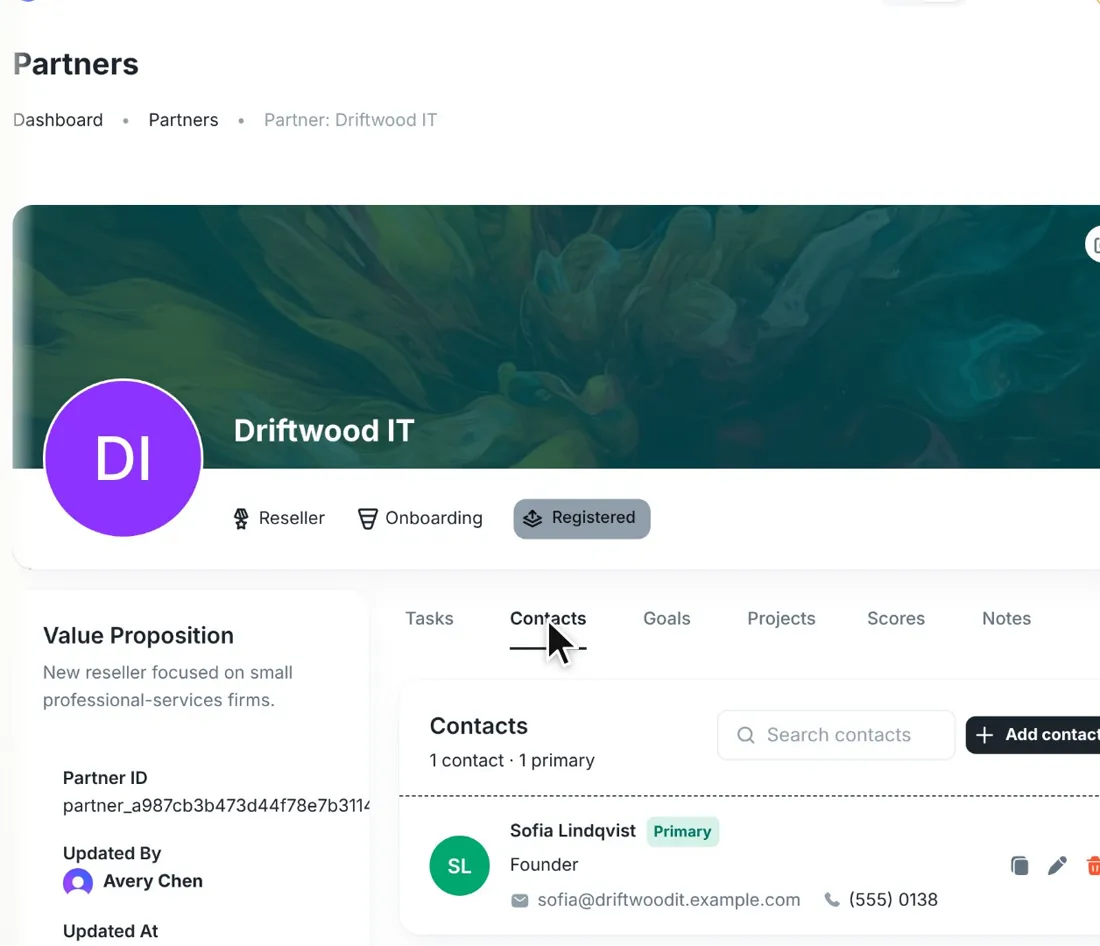
2. Go to Contacts
Open the Contacts tab on the partner record. It lists everyone you work with at that company and shows a count such as "1 contact, 1 primary". Click Add contact.
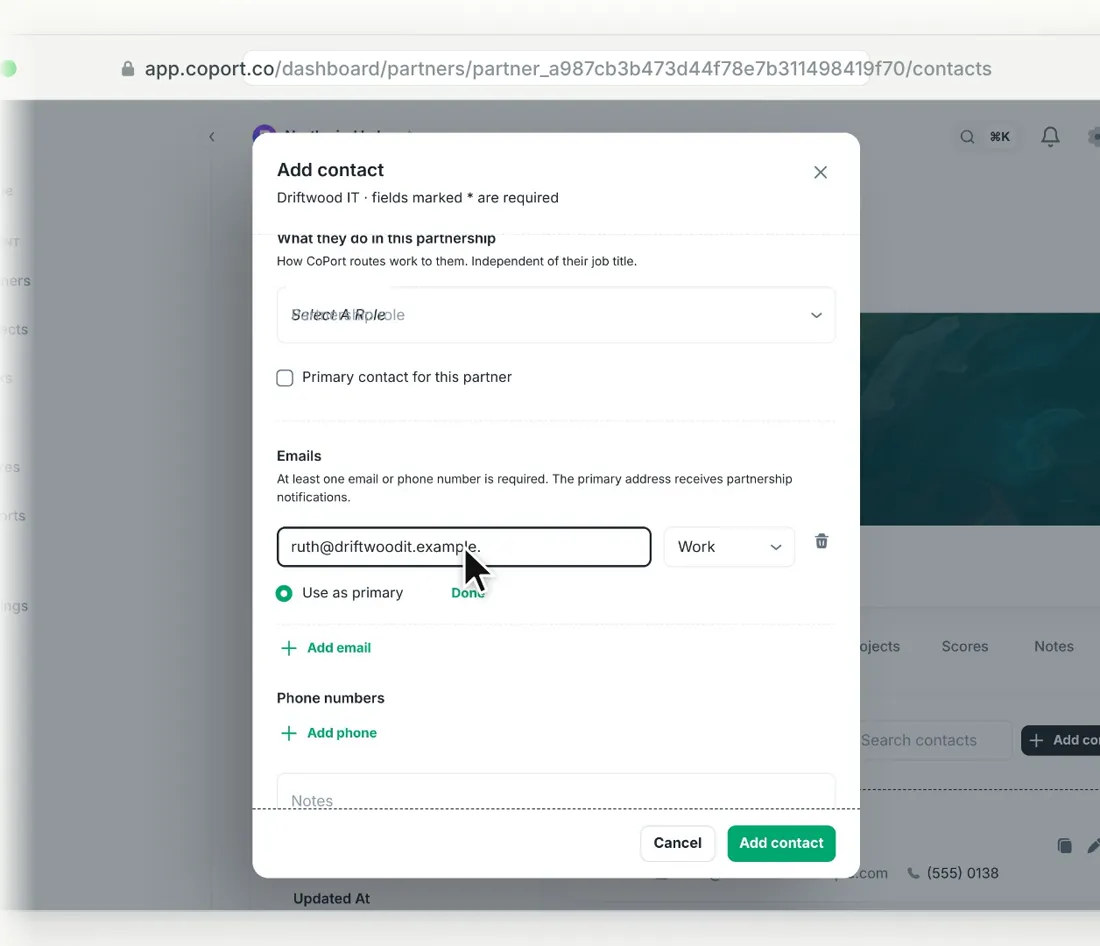
3. Add a contact
In the Add contact dialog, fields marked with an asterisk are required.
- Who they are: First name, Last name and Job title at the partner.
- What they do in this partnership: select a role. This is how CoPort routes work to them, independent of their job title. Tick Primary contact for this partner if this is the main contact.
- Emails: at least one email or phone number is required. The primary address receives partnership notifications. Use Add email and Use as primary.
- Phone numbers: use Add phone if you have one.
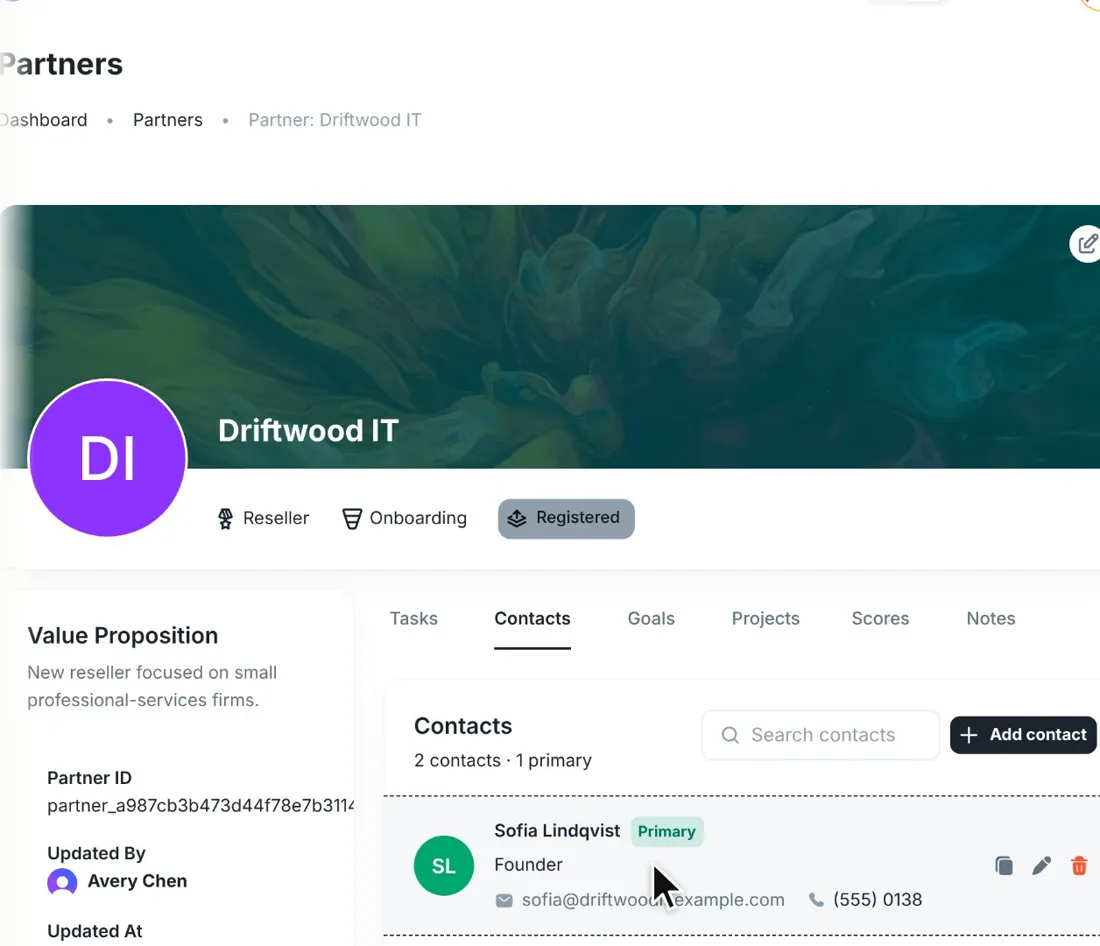
4. Save it
Click Add contact. The contact appears in the list with its role, email and phone, so the whole team can see who to call. The primary contact is labelled Primary.
5. Add a note
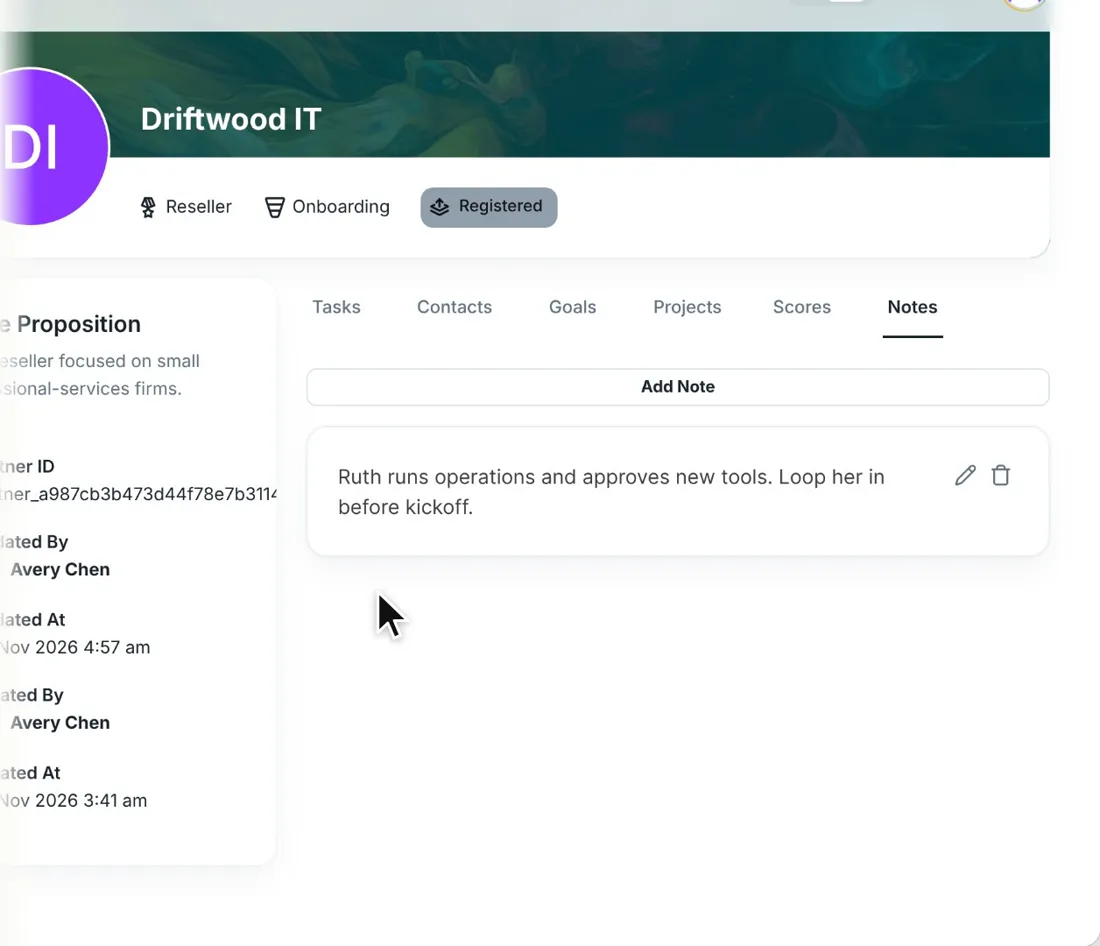
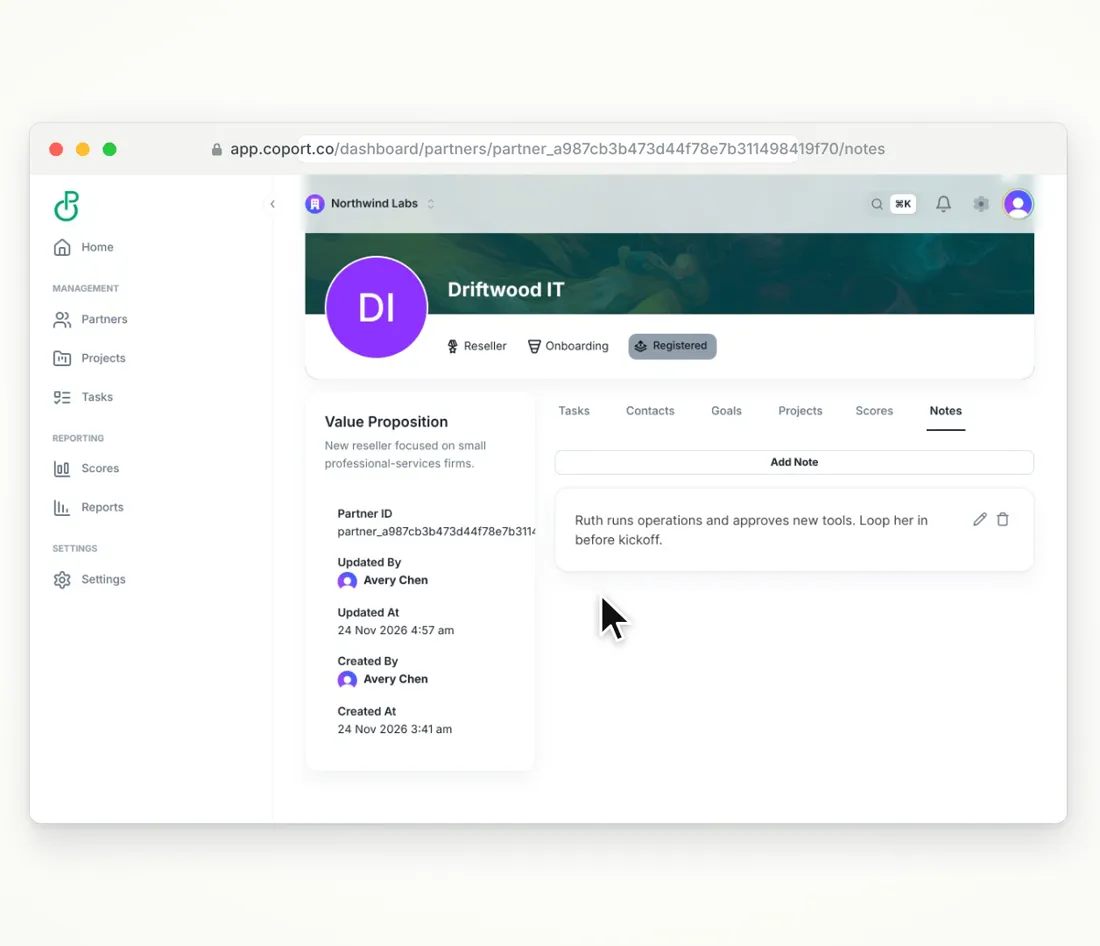
Open the Notes tab and click Add Note. Write what the team should know, then click Create. The example note reads "Ruth runs operations and approves new tools. Loop her in before kickoff."
6. One shared history
The note appears on the partner's Notes tab, with options to edit or delete it. Notes and contacts stay with the partner, not in someone's inbox.
What you should see
The new contact on the Contacts tab and the new note on the Notes tab of the same partner record.
Frequently asked questions
What does "primary contact" mean in CoPort?
The primary contact is the main contact for a partner. The primary email address receives partnership notifications.
What is required to add a contact in CoPort?
First name and last name are required, and at least one email address or phone number is required.
Where are partner notes stored in CoPort?
Notes are stored on the partner's Notes tab, so the whole team sees them with the partner record.
Using an AI assistant? This guide is available as plain Markdown at /docs/add-contacts-and-notes.md, and every guide is indexed at /llms.txt.